9 Best PowerPoint Alternatives for Developer Presentations in 2026

If you’ve ever tried to show a code snippet inside a PowerPoint slide, you already know the pain.
The font looks wrong, and you spend more time fixing the slide format than preparing what you’re going to say.
PowerPoint was built for general use, not for developers walking through a technical presentation or a designer showing a live prototype.
That’s why technical teams are switching to better alternatives that offer clean syntax highlighting, live code editing, and smooth animations for demos.
This guide lists the best PowerPoint alternatives built for technical people, with features, pros, cons, and pricing, to help you choose the right tool for your next presentation.
Why Look for PowerPoint Alternatives?
PowerPoint has been the default presentation tool for decades. It’s reliable, widely used, and creating slides is efficient due to its WYSIWYG editor.
But for developers, it often creates more problems than it solves.
- No native code block support. You have to paste code as plain text or use screenshots.
- No version control. Collaborating on a .pptx file is messy.
- Weak animation. The morph and animation tools are limited for complex diagrams.
- Not built for the web. Sharing and embedding slides online is tedious.
- Collaboration is slow. When you email files back and forth, you end up with multiple versions, conflicting changes, and wasted time merging edits.
- The price adds up. Microsoft 365 subscriptions cost around $9.99 to $12.99 per user per month. If you only need presentation software for occasional use, that recurring cost feels unnecessary.
Now, let’s look at the best tools that solve these problems. Some are code-based, some are browser-based, and some use AI to speed up your workflow. The right one depends on what you build and how you present.
Snappify
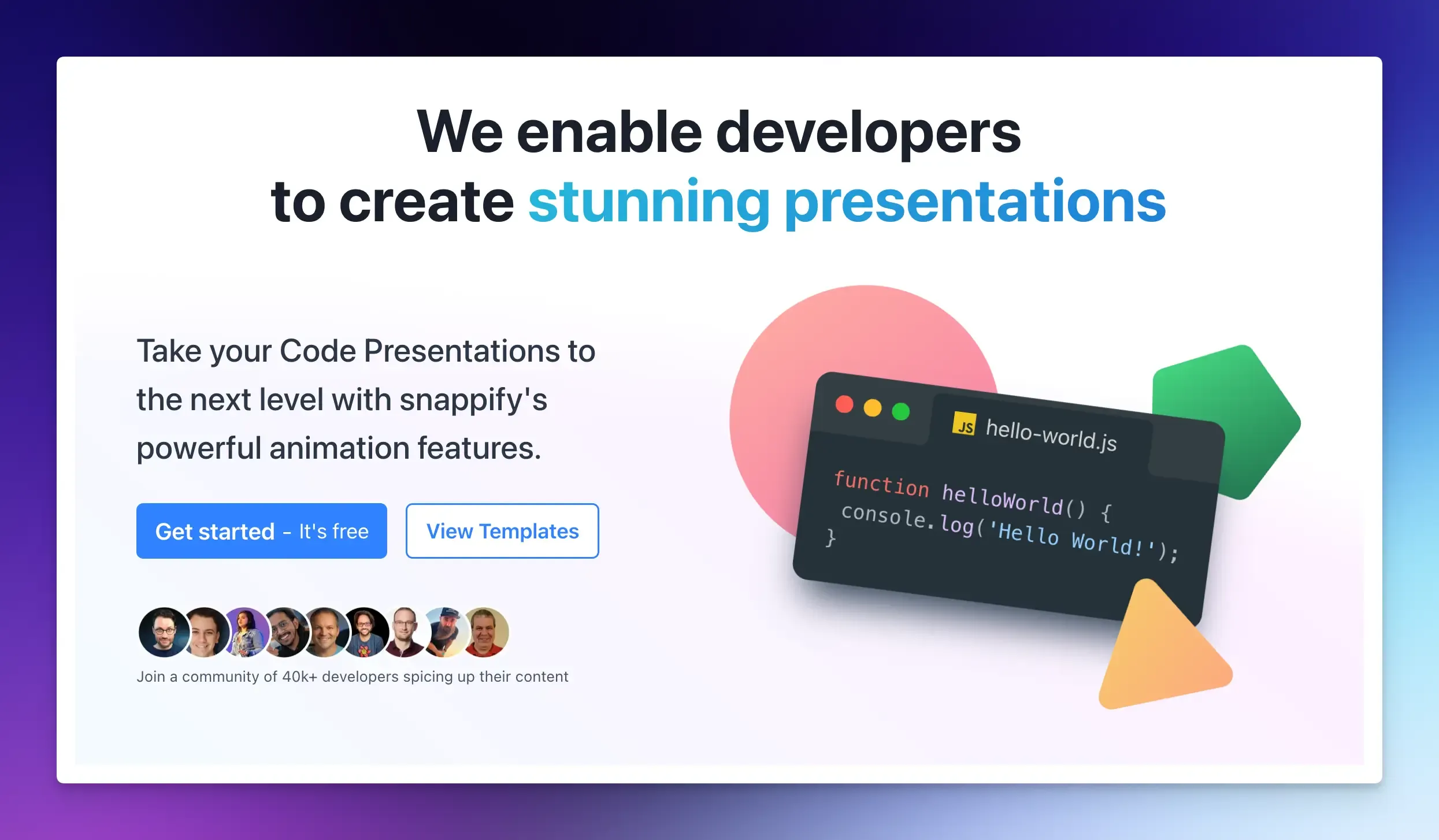
Snappify is built specifically for developers who need to present code. It lets you create beautiful code snippets and slides without fighting the tool.
If you frequently present technical content, code walkthroughs, API explanations, or CLI demos, Snappify is one of the most practical PowerPoint alternatives available right now.
Best for: Developers, technical educators, and anyone who needs interactive code demonstrations.
Key Features:
- Syntax-highlighted code blocks built right in.
- Drag-and-drop slide editor with a clean interface.
- Animate code snippets with multiple visual styles.
- Export slides as images, PDFs, or videos.
- Embed slides in Notion, Hashnode, or Medium.
- Custom branding options.
- Code snippet management.
- AI code explanations.
Pros:
- Designed entirely for technical presentations.
- Works inside your code editor.
- Great for sharing on social media or documentation pages.
Cons:
- Not ideal if your presentation has no code.
- Advanced collaboration features require paid plans.
Pricing: Free plan available. Paid plans start at $5/month.
Pitch
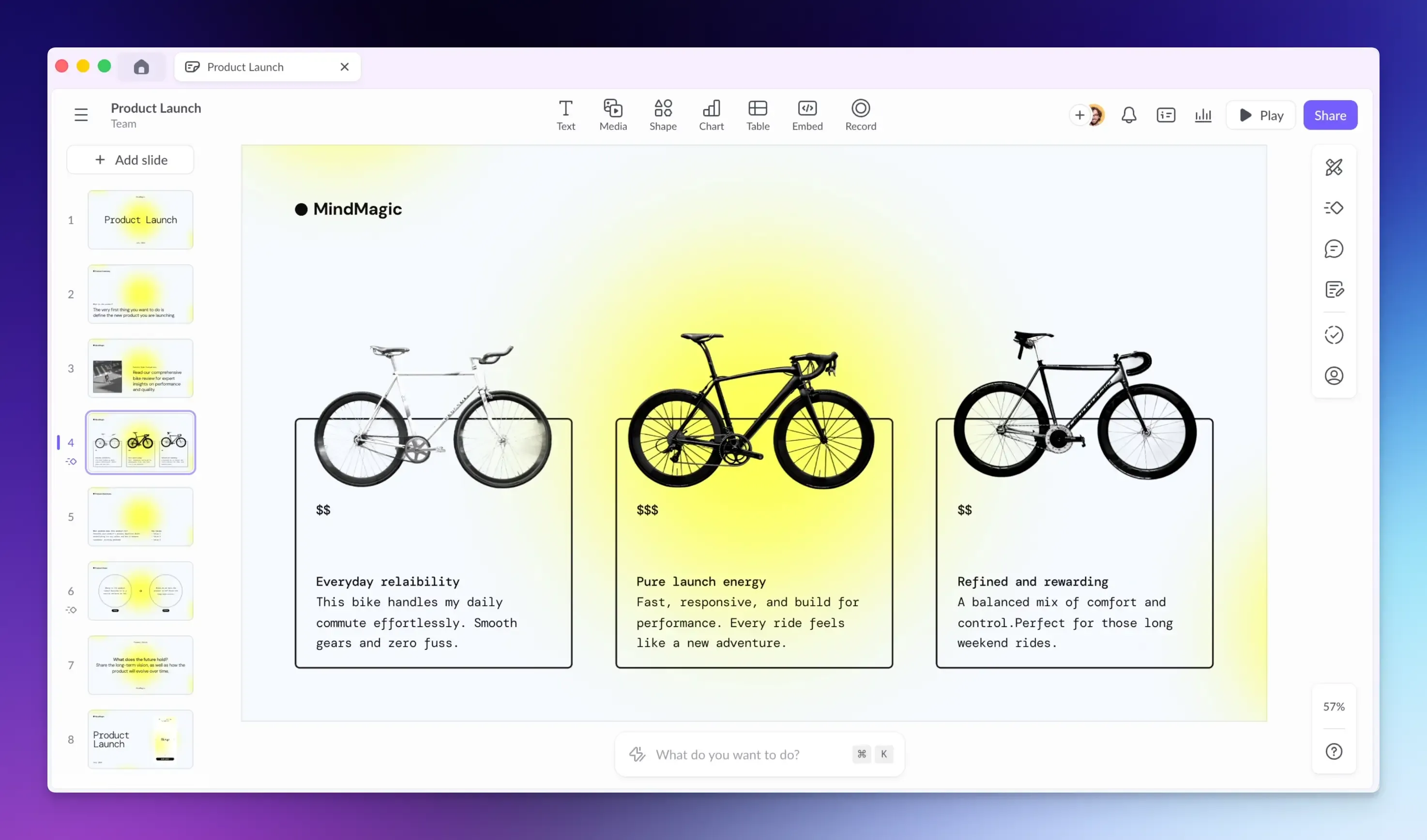
Pitch is a browser-based presentation tool that’s become a popular alternative to PowerPoint for business and design teams. It doesn’t go deep on code support, but for product demos, team updates, and client presentations, it gets the job done fast.
Best for: Teams that need good-looking slides without design skills.
Key Features:
- Real-time team collaboration.
- Extensive library of customizable templates.
- Custom font and brand kit support.
- Analytics to track who viewed your slide deck.
- Integrates with Figma, Notion, and other tools.
- AI slide generation from text prompts.
Pros:
- Very fast to create a polished deck.
- Great for team use.
Cons:
- Limited animation options.
- Some advanced features are locked behind paid plans.
Pricing: Free plan available. Paid plans start from $10/month per user.
Keynote
Keynote is a powerful presentation tool that comes included with most Apple devices. If you live inside the Apple ecosystem, this is your best option.
You can also read our guide: Best Keynote Alternatives.
Best for: Mac and iOS users who want a smooth and easy-to-use presentation tool.
Key Features:
- Cinematic transitions and animations.
- Live collaboration with other Apple users.
- Import and export PowerPoint files.
- Professional templates out of the box.
- Works across Mac, iPad, iPhone, and Apple Vision Pro.
Pros:
- Completely free for Apple users.
- Smoother animations than PowerPoint.
Cons:
- Only works well on Apple devices.
- Windows users cannot easily edit their files.
Pricing: Free for all Apple device owners. Apple Creator Studio subscription ($12.99/month) unlocks premium themes and AI features.
Google Slides
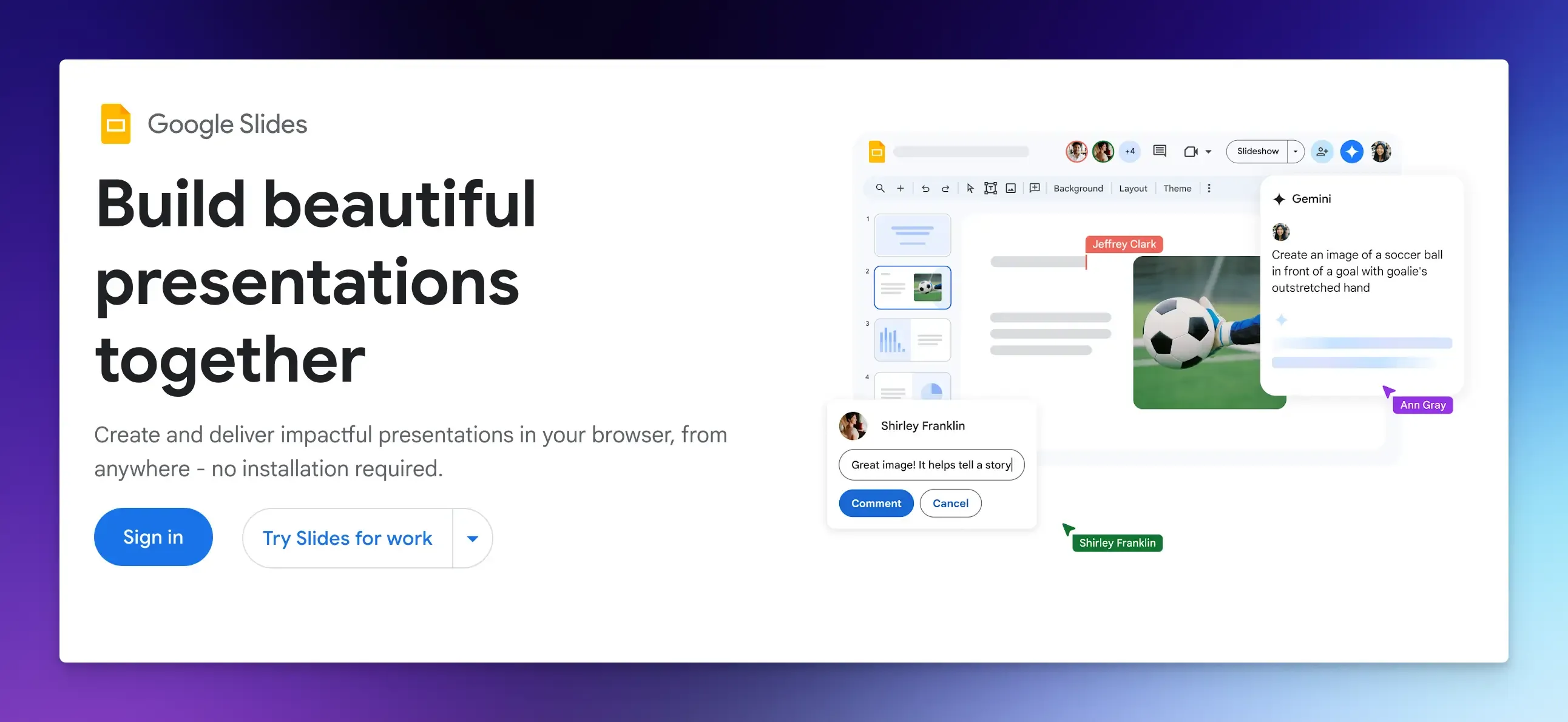
Google Slides is for teams that work together remotely. It lives entirely in your browser, so there is nothing to install or update. Plus, it works smoothly with the rest of Google’s tools.
Best for: Educators, students, and anyone who needs simple, collaborative slides without spending money.
Key Features:
- Real-time editing and multi-user collaboration.
- Comment and suggestion modes for feedback.
- Works offline with Chrome extension.
- Import and export PowerPoint files.
- Large library of templates and themes.
- Integrates with Google Drive, Docs, and Sheets.
Pros:
- Best-in-class sharing and collaboration.
- Familiar interface and low learning curve.
Cons:
- Limited design customization options.
- Not suitable for highly visual presentations.
Pricing: Free for personal Google accounts. Google Workspace Business plans start around $6.30/month per user (30 GB storage).
Canva
Canva is primarily a design tool, but its presentation builder has become one of the most widely used PowerPoint alternatives. It offers thousands of templates, a large media library, and an easy drag-and-drop interface.
Best for: Designers, developers, and non-technical users who want beautiful slides fast.
Key Features:
- Extensive library of templates.
- Drag-and-drop editor with no learning curve.
- Built-in photo and video library.
- An AI presentation generator from text prompts.
- Brand kit for consistent logos, colors, and fonts.
- Morph-like animation with Magic Animate.
Pros:
- Ready-to-use, professional-looking designs.
- Works across desktop, browser, and mobile app.
Cons
- No native code formatting and syntax highlighting.
- Can feel slow with large, image-heavy decks.
Pricing: Free plan available. Canva Pro costs $15 per user per month.
Prezi
Prezi replaces slides with a single infinite canvas. You zoom in and out of content instead of clicking through pages. This format is ideal for presentations that need to demonstrate links between ideas.
Best for: Educators, startup founders, and anyone presenting concepts that benefit from visual relationships.
Key Features
- Zoomable canvas instead of slide-by-slide format.
- AI-powered presentation generation from prompts.
- Video presentation mode with recording tools.
- Analytics dashboard to track viewer engagement.
- Offline access for presenting without an internet connection.
Pros:
- Non-linear navigation allows jumping between topics.
- Works well for conceptual or relational topics.
Cons:
- Steeper learning curve than slide-based tools.
- Less suitable for step-by-step technical tutorials.
Pricing: Free plan available. Paid plans start at $5/month per user.
Reveal.js
Reveal.js is an open-source HTML presentation framework. You create your slides using HTML, CSS, and JavaScript.
This gives you complete control over every pixel, and because it runs in a browser, you can include live demos, iframes, and interactive presentation elements directly in your slides.
Best for: Developers who want full control over design using code.
Key Features:
- Supports Markdown for writing slide content.
- Built-in syntax highlighting for code blocks.
- Smooth CSS-based animations and slide transitions.
- Plugin system for extending functionality.
- PDF export is built in.
Pros:
- Complete design freedom.
- Live code and demos inside slides.
Cons:
- Steep learning curve for non-developers.
- No built-in collaboration features.
Pricing: Free and open source. Hosted version (Slides.com) starts at $7/month.
Gamma
Gamma is an AI presentation maker that turns a simple prompt into a complete presentation in minutes. You type a topic or paste an outline, and it generates a full slide deck for you with slide layout, content, and visuals already in place.
Best for: People who want AI to build the first draft for them.
Key Features:
- AI deck generation from a text prompt or outline.
- Smart layouts that adapt to your content.
- Web-based with easy sharing links.
- Supports embedded media, video, and code blocks.
- Analytics on deck views.
- Export to PDF or PowerPoint.
Pros:
- Fastest way to go from idea to working deck.
- Good for quick internal presentations or drafts.
Cons:
- Less design control than other tools.
- AI-generated content needs editing.
Pricing: Free plan available. Paid plans start at $9/month.
Marp
Marp lets you write slides in Markdown. You write in a .md file, and Marp turns it into a clean, HTML-based presentation.
Best for: Developers who want Markdown-based slides with minimal setup.
Key Features:
- Write slides entirely in Markdown.
- VS Code extension for live preview.
- Export to PDF, HTML, or PowerPoint.
- Custom CSS themes for full design control.
- Code syntax highlighting is built in.
Pros:
- Build and preview slides without leaving your code editor.
- Version-controllable with Git.
Cons:
- Very limited visual design options without CSS.
- Not suitable for non-developers.
Pricing: Free and open source.
Final Words
PowerPoint is not a bad tool. It is just not built for developers.
The tools listed above cover every major use case from code-first presentations to AI-generated decks.
None of them is perfect, but each one is genuinely better than PowerPoint in at least one important way.
Choose a tool that matches your main use case to save time and improve your technical content.
FAQs:
Are free PowerPoint alternatives good for professional work?
Google Slides, Apple Keynote, and Canva’s free plan are excellent for basic needs. You only need paid plans for advanced animations, team collaboration, larger storage, or AI-powered generation.
Which PowerPoint alternative has the best animations for technical demos?
Snappify provides code-specific animations, such as line-by-line highlighting. Keynote offers the smoothest, most cinematic animations on Apple devices.
How do I present code without losing syntax highlighting?
Use a tool built for code, such as Snappify. It keeps your syntax colors intact and even lets your audience copy code directly from the slide.