Google Slides vs snappify: Why Developers Are Switching for Code Presentations

Google Slides works well for general presentations, but it wasn’t built with developers in mind, and that shows the moment you try to present code.
There is no native code block support. If you paste code into a text box, it loses all formatting, syntax highlighting is gone, and you end up with a wall of plain text that makes your presentation look boring.
Developers and technical content creators need a tool that is built specifically for code.
The good news is you don’t have to use general presentation tools for technical talks.
This guide breaks down the pros and cons of Google Slides vs Snappify so you can pick the right tool for your next code presentation.
What Is Google Slides?
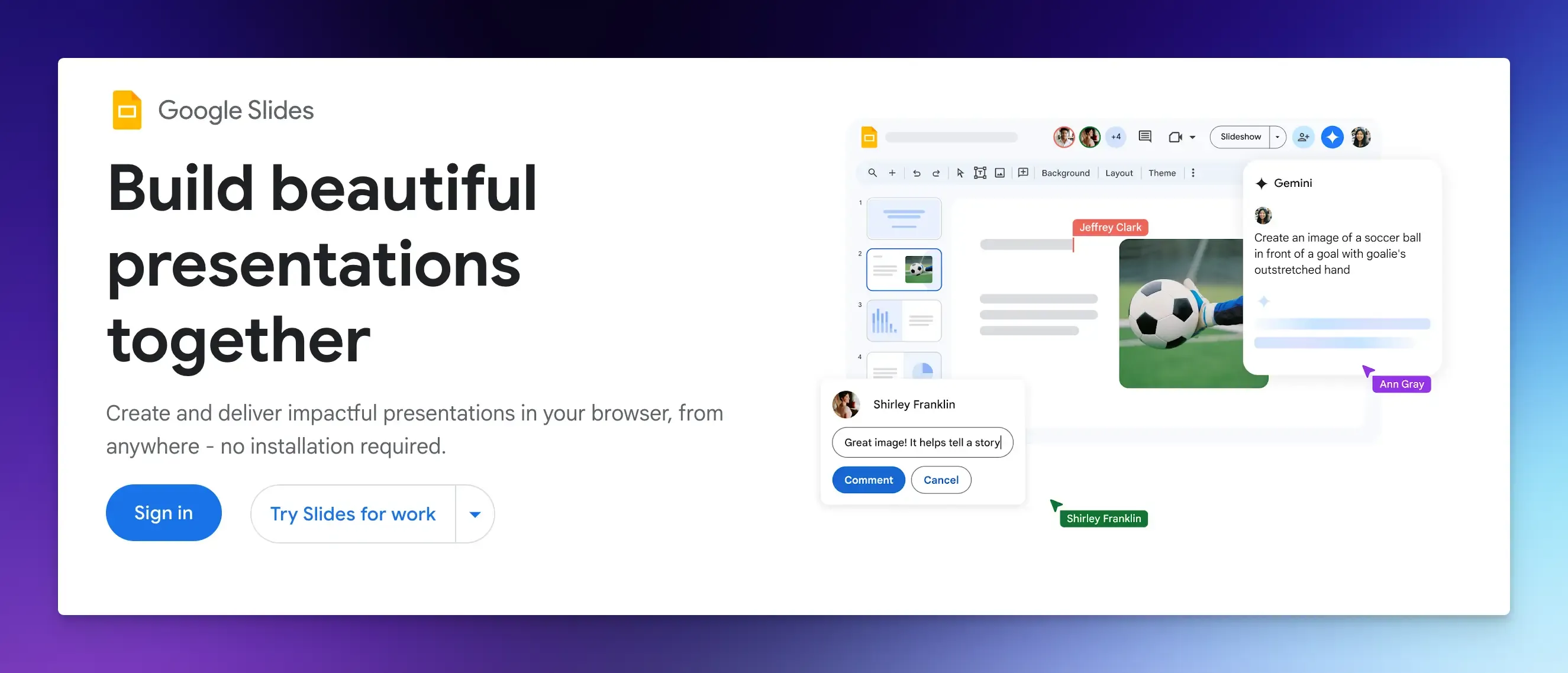
Google Slides is a browser-based presentation tool from Google. It is part of the Google Workspace ecosystem alongside Google Docs, Sheets, and Drive.
Most people already have a Google account, which makes Slides the default starting point for anyone who needs to create a presentation quickly.
It works across devices, offers many standard presentation features, and has a large library of templates and themes you can use right out of the box.
Key Features of Google Slides
- Real-Time Collaboration and Cloud Sharing: Multiple people can work on the same slide deck at once and you can see their changes in real time. Everything is stored in Google Drive, so your presentations are automatically saved and accessible from any device. This is one of Google Slide’s strongest features, especially for remote teams.
- Templates and Themes: There are hundreds of free templates available, both through Google and third-party sites. You can change fonts, colors, and layouts without starting from scratch.
- Animations and Transitions: You can add basic slide transitions and object animations. These effects work well for general content, but are not as advanced as dedicated design tools.
- Google Slides AI: Google has added Gemini AI to Slides, including suggestions for slide layouts and a “Help me visualize” feature that generates images from your prompts. It can also pull information from your emails and files to build slides.
Pros of Google Slides
- Completely free for personal use.
- Easy to share via link.
- Works in any browser.
- Automatic backup.
- You do not need to install anything.
Cons of Google Slides
- No syntax highlighting or native code block support.
- Code formatting breaks when pasted in.
- Animations are basic and limited.
- Viewers cannot copy code directly from slides.
- Not designed for technical content.
Pricing
Google Slides is free for personal use with a Google account.
For businesses, it comes included with Google Workspace plans starting at around $6 per user per month. This plan includes 30 GB of storage and standard security features. Higher plans add more storage and advanced AI tools.
What Is Snappify?
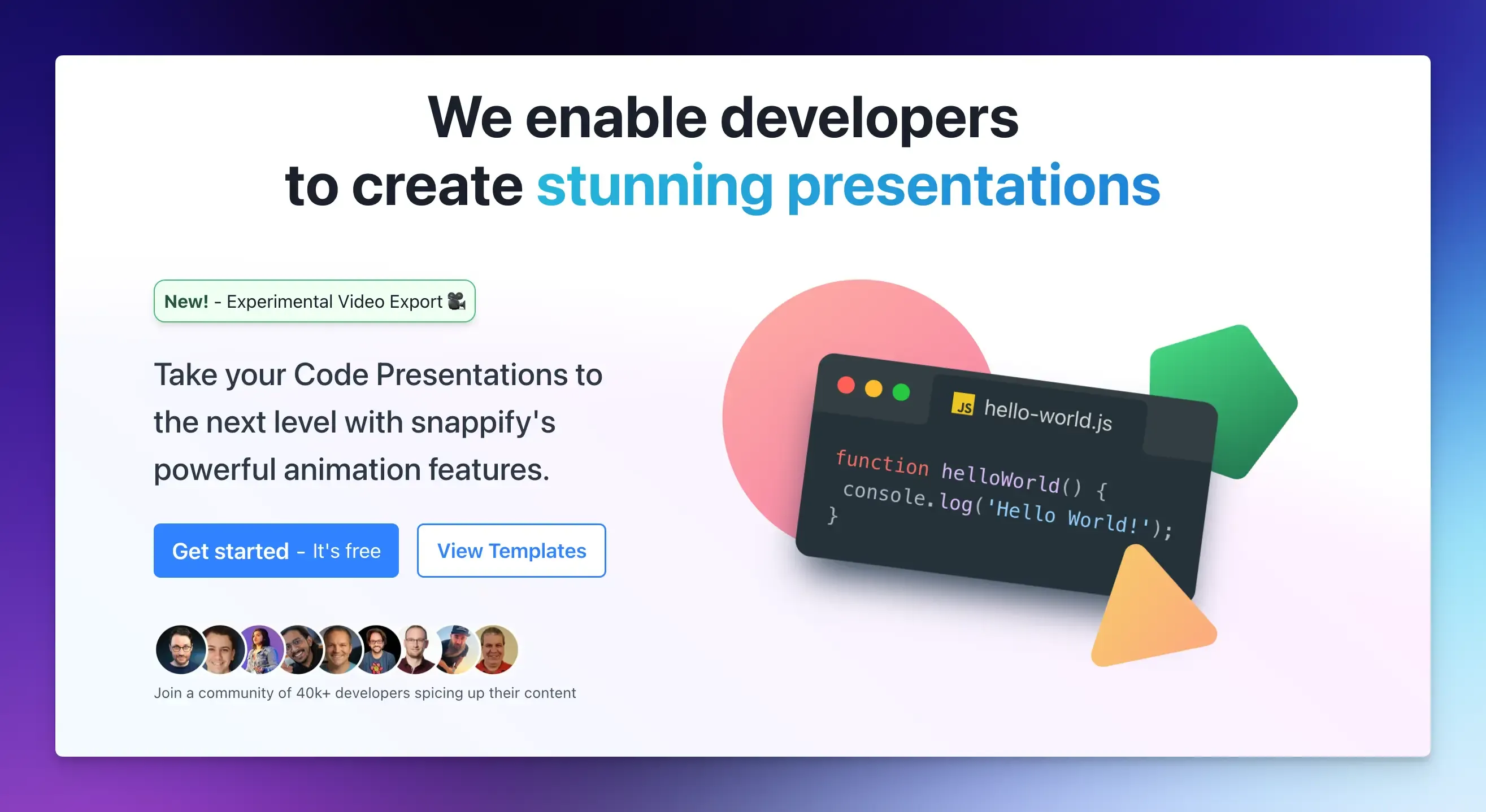
Snappify is a presentation tool built specifically for creating code snippets and technical presentations. You can create shareable code images that make your code look good without spending hours on formatting.
Key Features of Snappify
- Design Editor: The drag-and-drop editor lets you freely arrange code snippets. You can add multiple code windows on one slide to compare different versions, or place text boxes and arrows next to your code to explain specific parts.
- Syntax Highlighting: Snappify automatically highlights code with support for dozens of programming languages, including Python, JavaScript, TypeScript, Rust, Go, and more.
- Code Animations: You can animate through your code step by step and highlight specific lines in your presentation. This makes it much easier for your audience to follow along.
- Branding Tools: Snappify gives you full control over the look of your code snippets. You can add your own avatar and username to match your slides to your personal brand.
- Presentation Mode: Snappify is not just a code-image tool. You can build full slide decks in it and present them directly in the browser. It includes speaker notes, a presenter view, and keyboard shortcuts for navigating slides.
- Reusable Snippets: You can save code snippets and reuse them across multiple presentations. This saves time when teaching similar content or repeating examples.
- Export Options: You can export slides as a PDF, share a public link, or export individual code images for use in blog posts, social media, or documentation.
- Team Features: Snappify supports team workspaces where members can share snippets, templates, and presentations.
Pros of Snappify
- Automatic syntax highlighting.
- Interactive slides let viewers copy code.
- AI-powered code explanations.
- VS Code and IntelliJ extensions.
- Built-in templates for code presentations.
Cons of Snappify
- Not a general-purpose presentation tool.
- Less useful if your presentations rarely include code.
- Requires a bit of a learning curve for those new to the tool.
Pricing
Snappify offers a free plan with access to core features. Paid plans start at around $5 per month when billed annually, which gives you access to animations, more export options, and team features.
Google Slides vs Snappify: Which is Better?
Both tools serve different audiences, and neither is objectively better in all situations.
Google Slides is a strong fit for non-technical presentations, such as company updates, design reviews, team meetings, or anything where the content is mostly text, images, and charts. It is also a great choice for teams that collaborate heavily and need a tool everyone already knows how to use.
For developers who occasionally mention code in a slide or two, Google Slides with a code screenshot can work fine.
But if code is the main event of your presentation, Google Slides is the wrong tool for the job. If your code changes, every screenshot needs to be redone.
Use Google Slides if:
- You present general content with few code examples.
- You collaborate with a team that needs real-time editing.
- You need offline access to your slides.
- You want a completely free tool.
For developers, programming instructors, and technical content creators, Snappify wins because it solves the core problem of code presentations.
Your code will look better, your audience will understand it more clearly, and your presentations will feel more professional.
Use Snappify if:
- Your presentation focuses on code.
- You teach programming or give technical talks.
- You need animations to explain code changes.
- You share code on blogs, social media, or documentation.
Final Words
The decision comes down to one thing: code is a priority in Snappify but an afterthought in Google Slides.
If you want a free, simple-to-use tool for general presentations that works well for teams, stick with Google Slides.
If you want your code to be readable, explain complex ideas with animations, and have your audience interact, choose Snappify.
FAQs:
Can I present Google Slides directly from my phone?
The Google Slides app on iOS and Android lets you present from your phone. You can connect your phone to a display via a compatible cable or use Chromecast to stream wirelessly.
Can I import my existing Google Slides into Snappify?
Snappify does not support direct import of Google Slides files. You would need to rebuild your slides inside Snappify.
Can I use Google Slides without an internet connection?
Yes, but you need to set it up in advance in Google Drive settings before you lose your connection. Once enabled, your changes sync automatically the next time you go back online.
Is Google Slides safe to use for confidential code or business presentations?
Google Slides uses the same security as other Google Workspace apps. If you use two-factor authentication on your account, your presentations are well protected. That said, if you work with confidential data, always check your organization’s data policy before storing sensitive content on any cloud platform.