Why Code Loses Formatting When Pasted (and How to Fix It)

Code loses formatting when pasted because your clipboard holds more than one version of what you copied, and the app you paste into chooses which version to use.
Then it applies its own rules. That is why a snippet that looks perfect in your editor can arrive in Slack, email, or a doc with flattened indentation, the wrong font, and no colors.
The good news: once you know which app is doing what, each fix takes under a minute.
What actually happens when you copy code
When you press copy in a code editor, you do not save one thing to the clipboard. In a long-running thread in VS Code’s GitHub repository, a comment explains that the editor puts both plain text and HTML on the clipboard, and the target application decides which format to paste.
That split explains most of the damage:
- Plain text carries your characters, line breaks, and indentation.
- HTML carries the colors, the monospace font, and the theme.
- The destination picks one, or converts the HTML into whatever its own editor allows.
If the app takes the plain text, you lose color.
If it takes the HTML but ignores the styling rules, you lose the font and spacing.
If it takes the HTML from a dark theme, you can get dark-theme colors on a white page. Developers have asked VS Code for an option to keep the highlighting without the dark background when copying into email or MS Word.
This is the rich-text code-paste problem in one sentence: the code is fine, but the app receiving it wasn’t built to display code.
Here is what usually goes wrong:
- Indentation collapses, so nested logic becomes hard to read.
- The monospace font is replaced with the app’s default font.
- Syntax colors disappear or clash with the page.
- Line breaks merge into one long paragraph.
- Word processors with autocorrect can turn straight quotes into curly quotes, which breaks the code when someone copies it back out.
Why code formatting is lost in Slack
Slack gives you two ways to format a message, and they behave differently.
By default, Slack shows a formatting toolbar. Its options include Code and Code block, and Slack’s help center says to highlight the text and pick an option from the toolbar.
If you switched to markup mode, there is a catch. Slack lists three effects of that setting: formatting is applied after you send, messages you copy and paste appear in plain text, and lists are not auto-formatted. So pasted code arrives flat unless you add the backticks yourself.
How to keep code formatting in Slack
- Paste your code into the message box.
- Select it and click Code block in the toolbar.
- Prefer typing markup? Click your profile picture, then Preferences, then Advanced, and check Format messages with markup under Input Options.
- In markup mode, surround the code with three backticks before and after.
- Press Shift + Enter for a new line so you do not send the message early.
Keep expectations realistic. Slack’s help pages describe Code and Code block, but they do not describe per-language syntax colors. Plan on monospace and preserved indentation, not a full editor theme. If you need the colors, send an image.
Why code formatting is lost in email
Email clients are not browsers. A 2026 rendering guide puts it plainly: Gmail renders your HTML inside its own DOM and aggressively sanitizes your CSS, and Outlook desktop uses Microsoft Word’s HTML engine.
That creates three problems for code:
- You do not control the reader’s client: The same email can look different in Gmail, classic Outlook, and Apple Mail.
- Word was built for documents: The same guide says classic desktop Outlook was never designed for modern CSS, so backgrounds, spacing, and fonts from your paste may not survive.
- The newer client behaves differently: The new Outlook for Windows uses a Chromium-based engine, so one message can look right there and wrong in the classic app. Knak notes that classic Outlook remains the enterprise default for many companies, so you cannot assume readers have moved.
How to keep code formatting in email
- Keep snippets short, ideally under 15 lines.
- Use a fixed-width or monospace font option if your email editor has one.
- Paste as plain text first, then format, so you do not import a dark theme into a white email.
- For anything where appearance matters, insert an image of the code, add alt text, and put the text version or a link below it. Some clients block images by default, so never rely on the image alone.
- For long code, send a link or an attachment instead of pasting it inline.
When to stop pasting and share code another way
Developers move code between many tools. Stack Overflow’s survey found that 35% of developers use six to ten distinct tools to get their work done.
Every handoff between an editor, a chat window, a ticket, and an inbox is another chance for formatting to break.
Pick the format based on what the reader needs:
- Plain paste
- Code block
- Image of code
- Shareable link or embed
Images also earn attention on feeds. In Socialinsider’s 2026 LinkedIn benchmarks, based on 1.3 million business posts, image posts averaged a 5.20% engagement rate in Q2 2026 against 3.95% for text-only posts.
Our deeper look at why code screenshots get more engagement than plain text covers the research behind this.
How Snappify fixes the paste problem
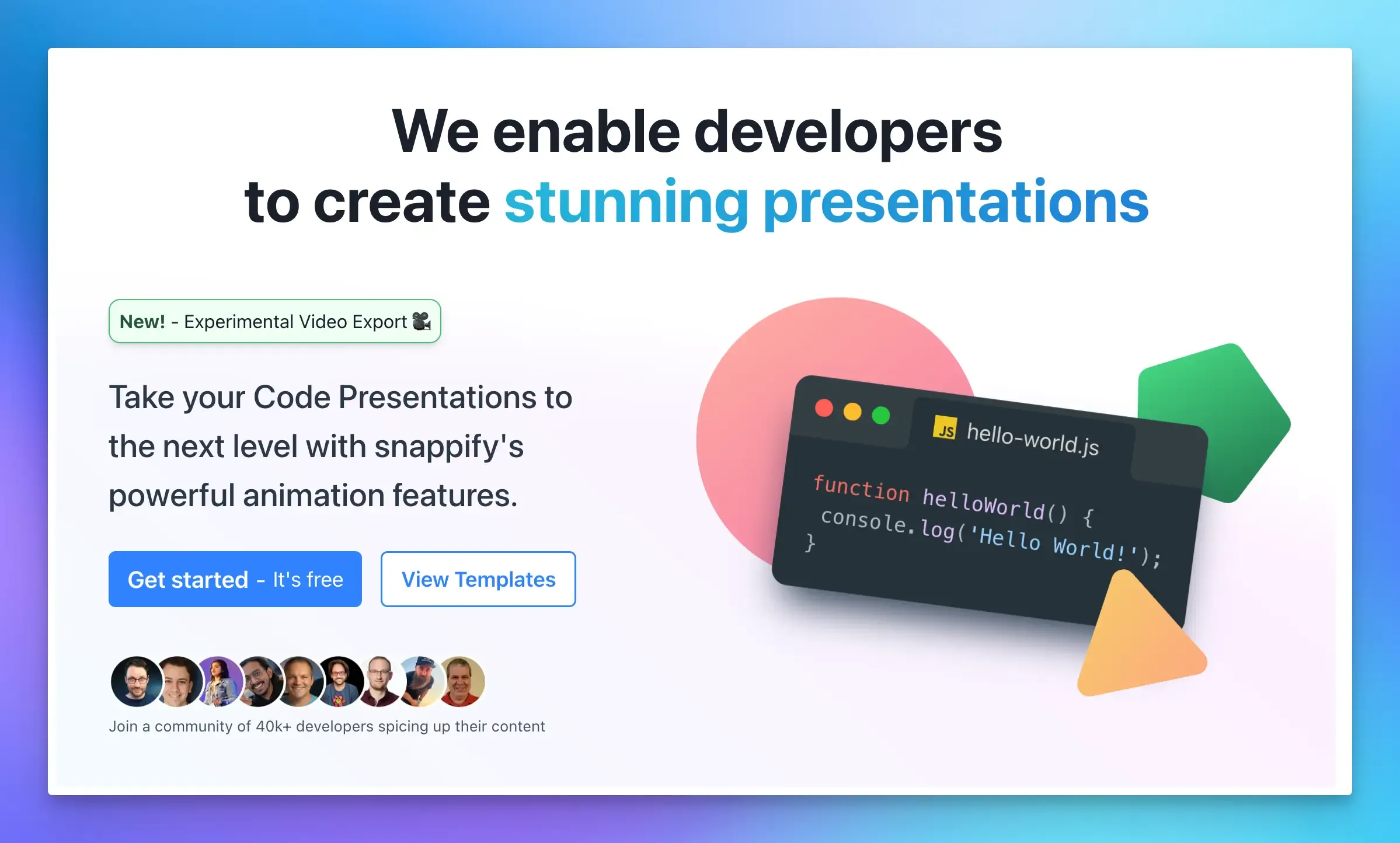
Snappify is a design tool built for code presentations, code screenshots, and animated videos.
More than 40,000 developers use it. For the paste problem, it lets you format code once and have it look the same wherever it lands.
Here is the workflow:
- Start from your code: Paste it into the free editor, or select it in VS Code and choose “Open in Snappify” from the right-click menu with the VS Code extension.
- Style it: Pick a theme and font, turn on line numbers, dim or highlight the lines that matter, and add arrows and notes. The editor does not detect the language automatically, so select it yourself for correct highlighting. The code editor docs list every option.
- Export for email, Slack, and social: An exported image looks the same in every feed and inbox that displays images. To keep it crisp, read our guide to fixing blurry code screenshots.
- Share it as copyable text when readers need the code: According to the docs, a shared or embedded snap is not an image or a canvas render; it is 100% HTML-based, so viewers can copy the text or code.
- Automate it: The Simple Snap API generates code screenshots from your own scripts on paid plans.
There is a free plan, and paid plans start at $5 per month when billed yearly.
Shared links and embeds have monthly view limits on some plans, so check the pricing page before you publish something widely.
For a head start, the template library includes layouts for social posts and presentations.
FAQs:
How can I share code so people can still copy it?
Use a format that keeps the text live. Snappify’s shared links and embeds are built in HTML, so viewers can copy the code directly, unlike a screenshot. You can also link to a code block in a repository or snippet host.
Is it better to paste code as text or send a screenshot?
Paste text when the reader will copy and run the code and exact styling does not matter. Send an image when appearance matters or the destination strips styling. When readers need both, publish a shareable link or embed that keeps the code as selectable text.